Preface
Printer driver installation in Artix OpenRC with gutenprint and cups-openrc
Installation gutenprint to OpenRC system
sudo pacman -S cups-openrc gutenprint
Add cups services to systemctl OpenRC
$ sudo rc-update add cupsd
 * service cupsd added to runlevel default
like at the systemd system, you can start and stop process
rc-service
$ sudo rc-service cupsd start
cupsd             | * Caching service dependencies ...                    [ ok ]
avahi-daemon      | * Starting avahi-daemon ...                           [ ok ]
cupsd             | * Starting cupsd ...                                  [ ok ]
if permission problem, add user to sys or wheel sudo
sudo usermod -a -G sys bima
and then cups service started at port 631
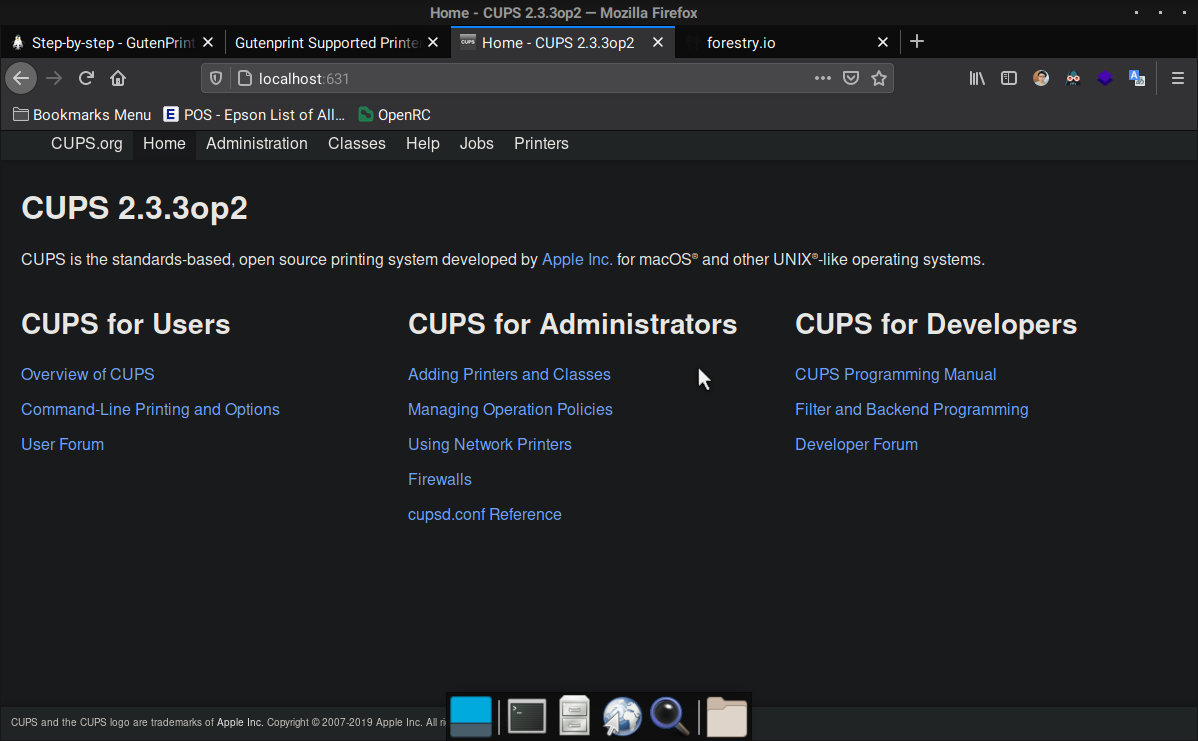
So, just enter the Administration menu and click at “add printer”. Now cups detected my printer at usb://EPSON/L350%20Series?serial=5138464B3030313530&interface=1 (usb interface 1). It just click.
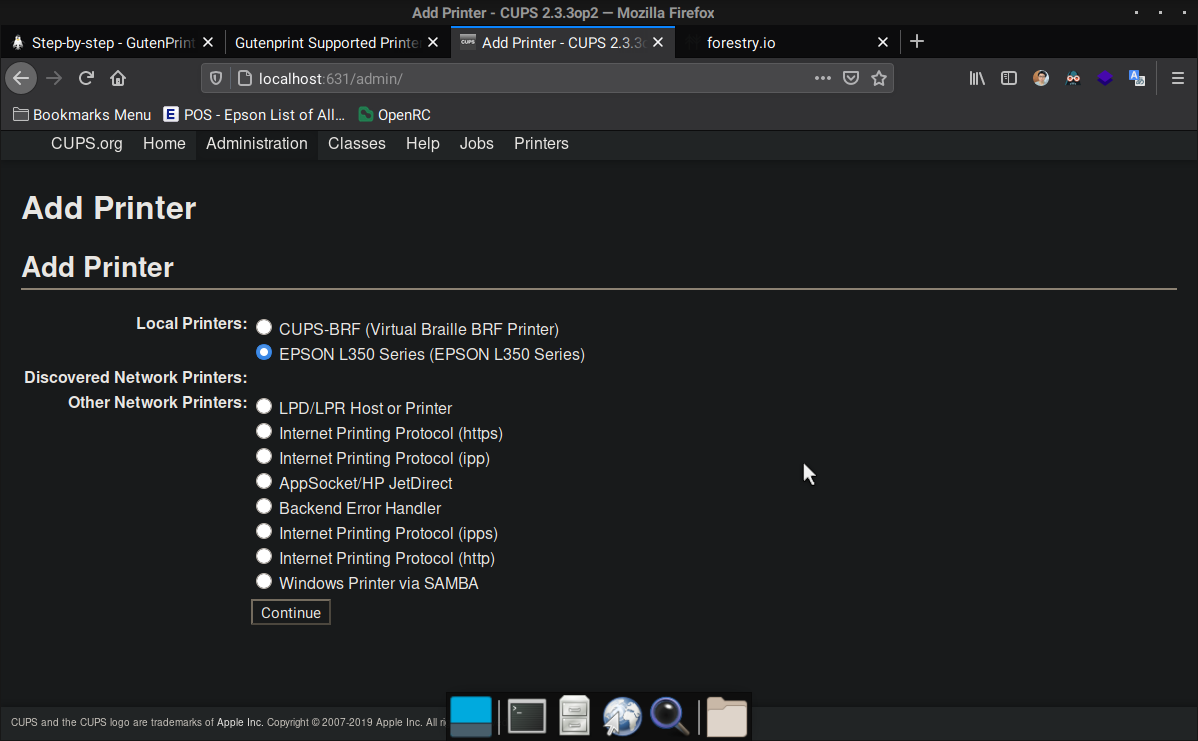
And follow the instruction
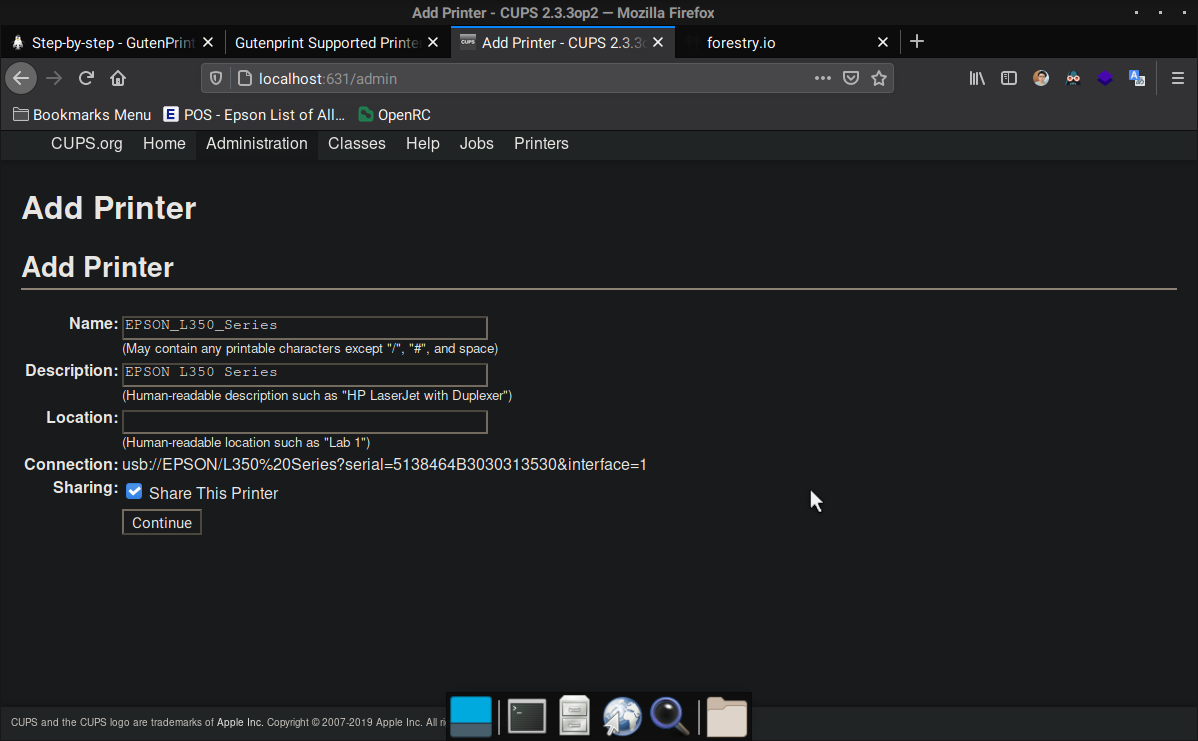
the next I will choose manufacture type of my printer. It says L310 (but its for L350)
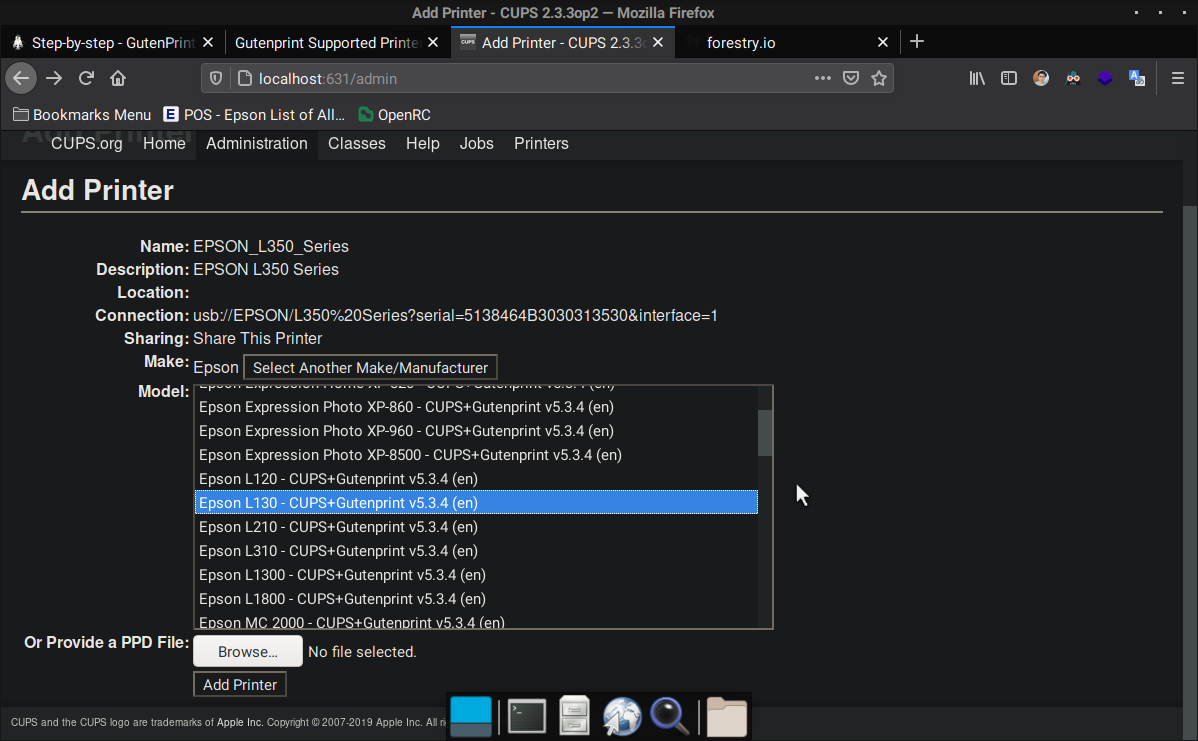
and this installation driver should be done.
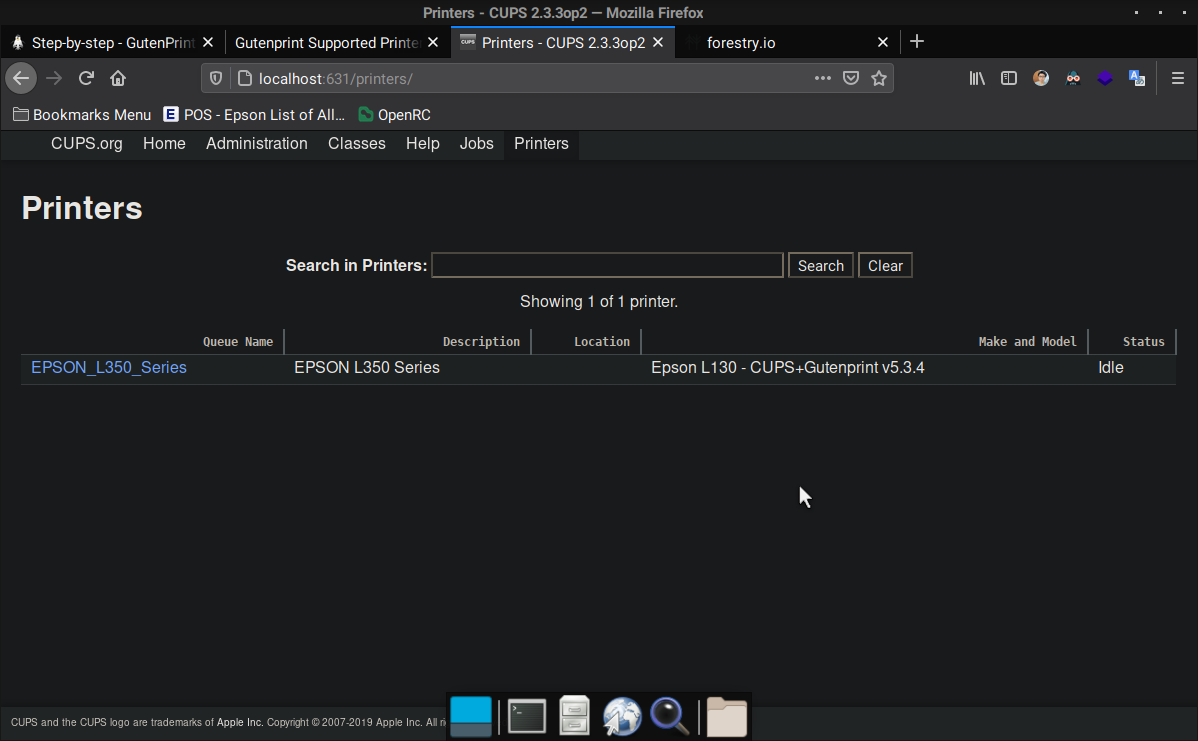
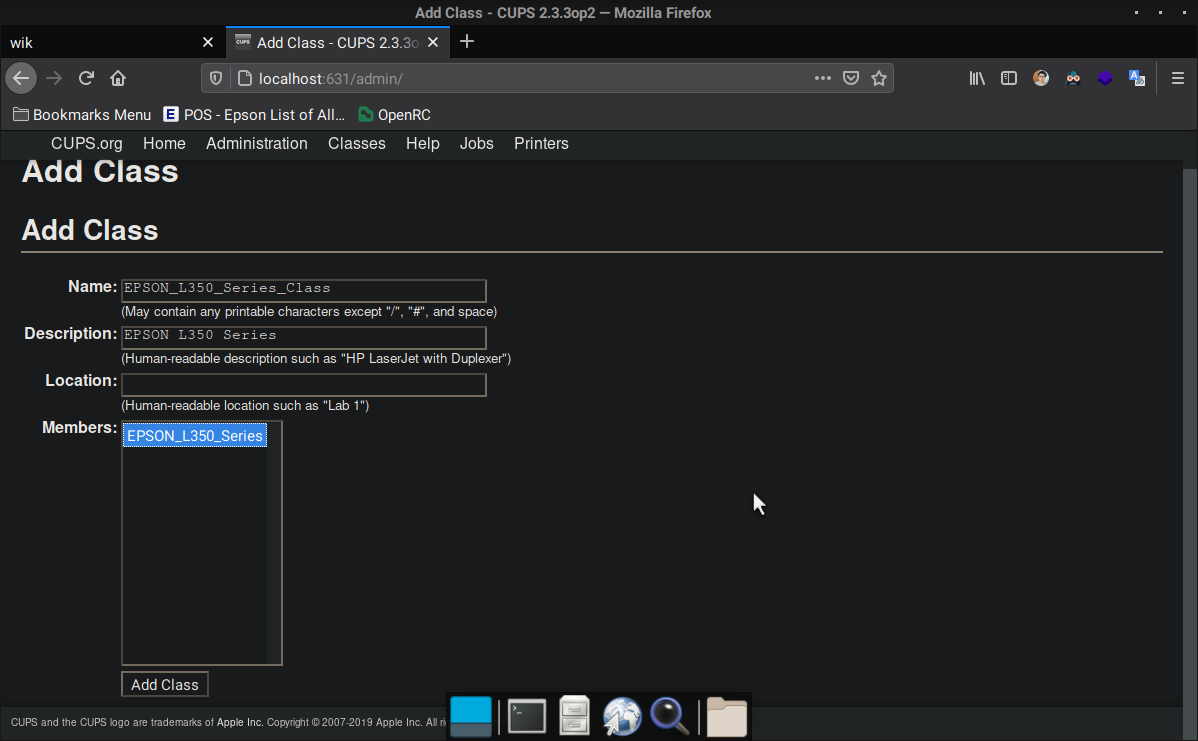
I need to add new class for this printer to working with gutenprint gimp interface. So, I entered the Administration menu add I click “Add Class” on there.
Just add Name of class (must be different with printer value name)
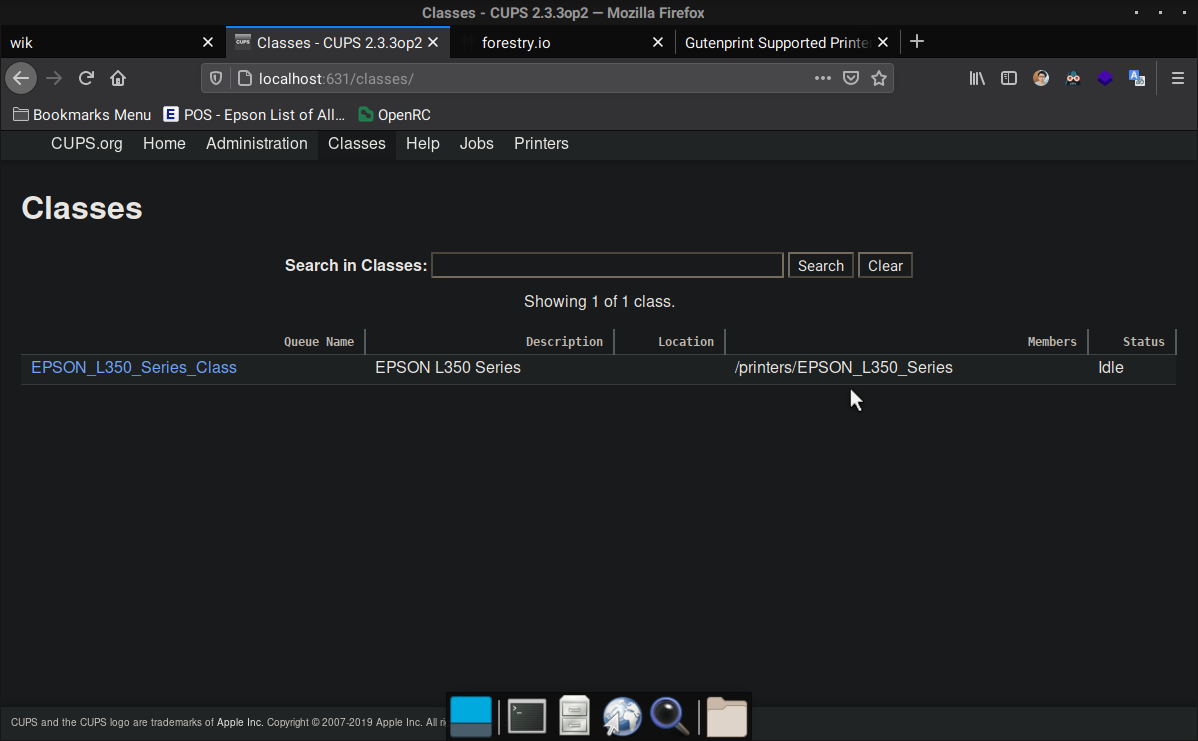
And it gonna be show up in Classes list
Print test
I use OnlyOffice workspace for printing sample document
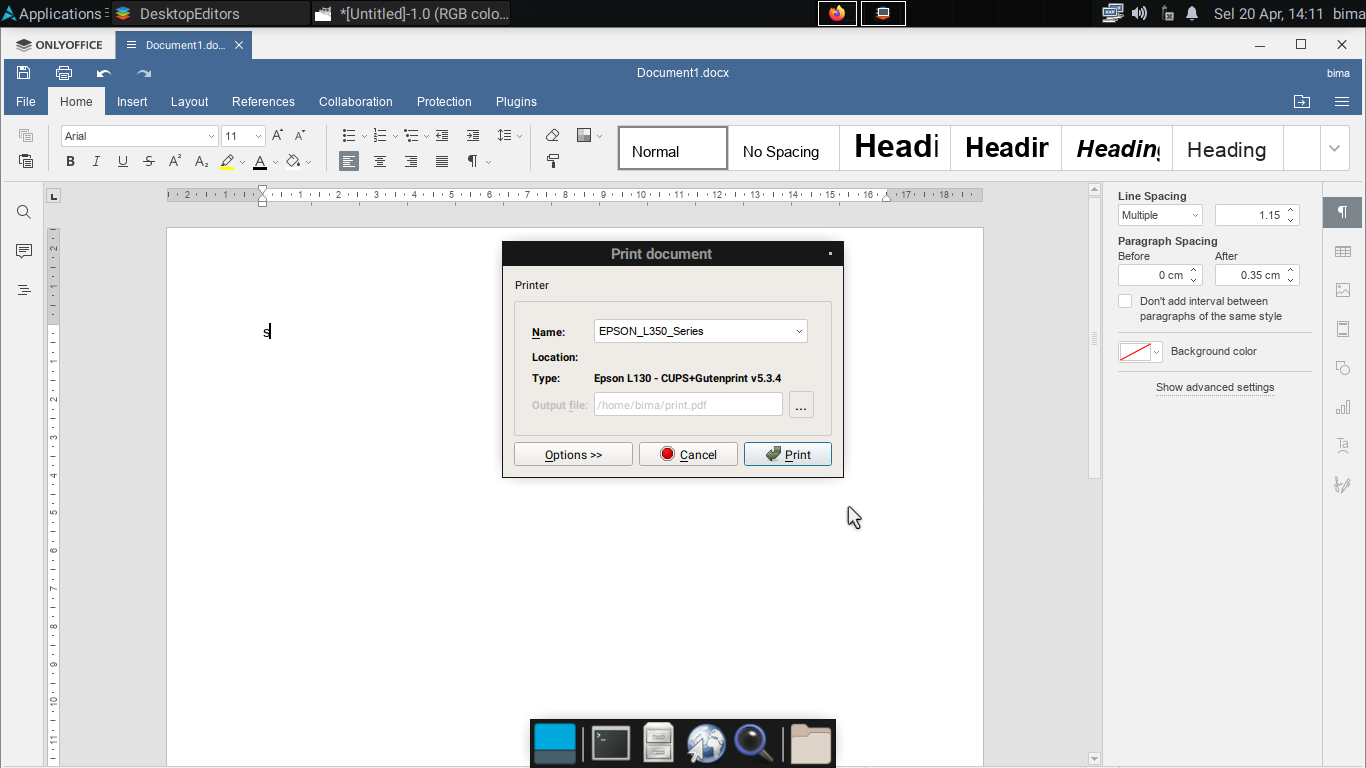
and it working
So, let’s try with gutenprint gimp interface. In setup menu choose manufacture printer do you need and choose ““Custom command” to run lp command with Epson L350 class
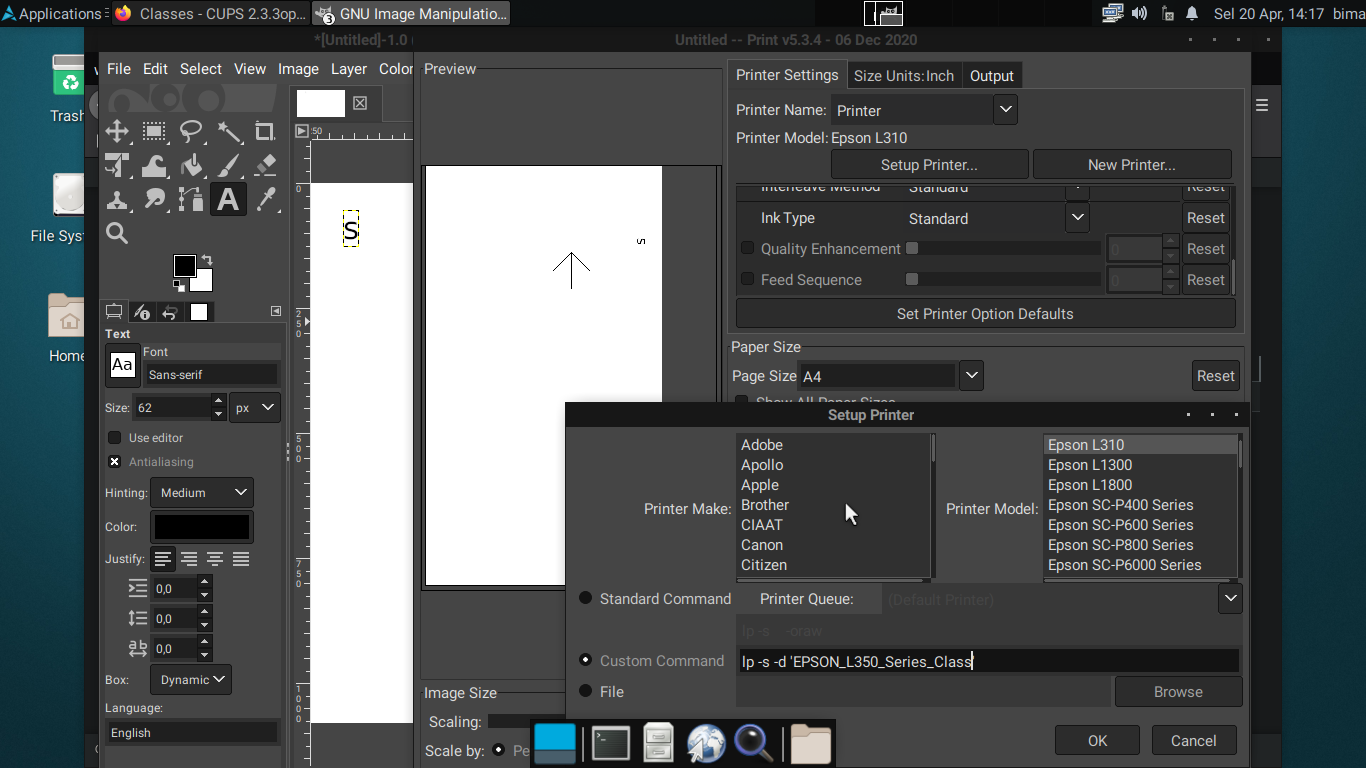
and it work perfectly
L Series support with gutenberg list
| — | — | — | | Epson L120 | escp2-l120 | | | Epson L130 | escp2-l130 | | | Epson L210 | escp2-l210 | | | Epson L310 | escp2-l310 | | | Epson L1300 | escp2-l1300 | | | Epson L1800 | escp2-l1800 |